 Princeton IT Services
Resources / Blogs
Power Automate Express Mode Limitations & Fixes
Learn Power Automate Express mode limitations, including payload size, timeout, and concurrency limits, plus practical ways to handle large files and workflows.
Overcoming Power Automate Express Mode Limitations in Agent Flows
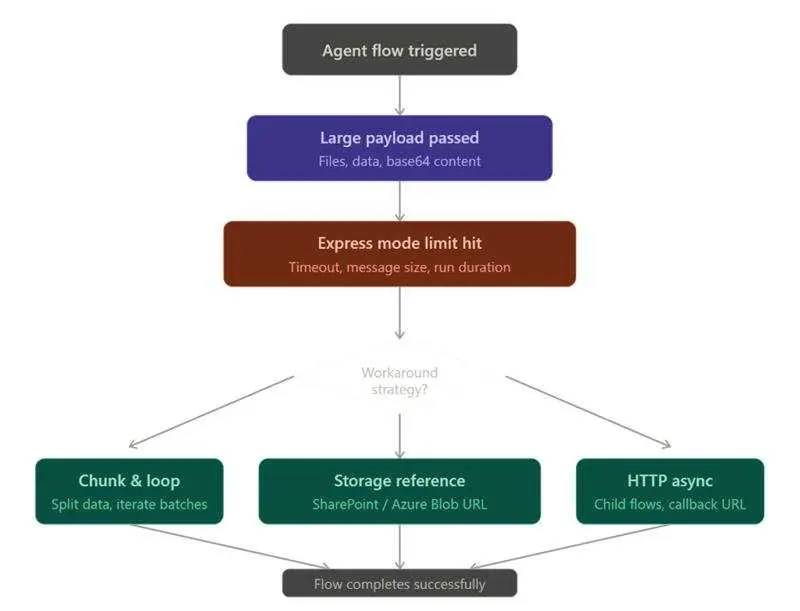
As organizations scale automation using Microsoft Copilot Studio and Power Automate, a common challenge begins to surface: Power Automate Express mode limitations in agent flows. These constraints—often missed during initial design—can lead to failures when handling large files, high-volume data, or complex workflows. Understanding these limits is critical for building scalable and reliable automation.
What Express Mode Constraints Actually Mean
Agent flows in Copilot Studio run within Power Automate’s Express execution environment, which introduces several architectural limits. These include Power Automate message size limits, payload size restrictions (around 100MB per action), and synchronous flow timeout limits (typically 30 seconds).
In addition, Power Automate concurrency limits can impact performance during high-volume executions. When working with large files such as PDFs, images, or document batches—especially when encoded in base64—these limits are reached faster than expected. Similar issues arise when processing large datasets or running multiple parallel operations within a single flow.
Common Express vs Standard Limits:
Limitation | Agent Flow | Standard Cloud Flow | Severity |
Message Size | 100 MB hard cap ~70–80 MB effective after Base64 overhead | 100 MB hard cap Chunking available on supported connectors | High File-heavy agent flows hit this fastest |
Synchronous Timeout | 120 sec outbound AI inference chains frequently exceed this | 120 sec outbound Async polling pattern available as workaround | High Most common failure in chained AI actions |
Daily API Requests | 2,000/day (M365 license) Higher on premium plans | 2,000/day (M365 license) Same tiers; Process license adds dedicated capacity | High Automated triggers exhaust quota quickly |
Concurrent Runs | Unlimited (default) 1–100 when concurrency control enabled | Unlimited (default) Same; enabling concurrency control is irreversible | Configurable Uncontrolled concurrency causes resource contention |
Loop Items | 5,000 (M365 / Low license) 100,000 on premium | 5,000 (M365 / Low license) 100,000 on premium; use query/filter to reduce | Medium Manageable with batching strategy |
Common Failure Scenarios in Power Automate
The most common issues seen in production environments include:
- Base64 file size issues in Power Automate: Encoding files directly increases payload size significantly.
- Handling large files in Power Automate: Passing full file content through actions instead of references.
- Bulk document processing without batching: Running loops on 50+ files in a single execution.
- Long-running AI workflows: Chaining multiple AI Builder or OpenAI actions within a synchronous flow, leading to timeout failures.
These scenarios highlight the need for better Power Automate performance optimization and workflow design.
Practical Solutions to Overcome Power Automate Limitations
Offload Files and Pass References
Instead of embedding file content, store files in SharePoint or Azure Blob Storage and pass only the reference (URL or ID). This approach avoids Power Automate payload size limits and improves performance when handling large files.
Process Data in Batches with Concurrency Control
When working with multiple records or documents, break them into smaller batches (10–20 items). Use Apply-to-each with concurrency enabled to stay within Power Automate concurrency limits while improving execution speed. This is a key strategy for processing large data in Power Automate.
Use Child Flows with Asynchronous Patterns
To avoid Power Automate timeout limits, split long-running processes into child flows. Trigger them using HTTP requests and implement asynchronous response handling. This method is widely used for Power Automate child flows async patterns and ensures workflows complete without hitting execution limits.
Optimize Data Delivery in Custom Connectors
For integrations, implement pagination or streaming at the connector level. This prevents large responses from exceeding Power Automate message size limits and ensures smooth communication with agent flows.
Key Takeaways
Power Automate Express mode limitations are not just restrictions—they define how workflows should be designed for efficiency. To build scalable solutions:
- Avoid passing raw files; use external storage
- Break large processes into smaller, manageable tasks
- Use asynchronous execution for long-running workflows
- Design with performance and limits in mind from the start
By following these best practices, organizations can improve workflow scalability in Power Platform and ensure reliable automation even as data and complexity grow.
Conclusion
To overcome Power Automate Express mode limitations, the focus should be on architecture rather than workarounds. Externalizing data, using batching techniques, and adopting asynchronous workflows will help build robust and scalable agent flows in Copilot Studio.
These approaches not only prevent failures but also improve overall performance, making enterprise automation more efficient and future-ready.
To Find More Information on this Topic: https://learn.microsoft.com/en-us/power-automate/limits-and-config
 Hours of daily filing down to minutes