 Princeton IT Services
Resources / Blogs
CI/CD Pipelines for Power BI in Azure DevOps
Streamline your Power BI report deployments with a CI/CD pipeline in Azure DevOps. Learn how to automate, version control, and ensure consistency across environments without requiring Premium Licensing.
As organizations scale their Power BI solutions, managing Power BI reports (.PBIX files) across different environments—development, testing, and production—becomes crucial. Automating this process with a robust CI/CD pipeline in Azure DevOps enhances efficiency, reduces errors, and ensures consistency.
This guide explains how to set up a CI/CD pipeline in Azure DevOps to manage PBIX files across multiple Power BI workspaces. We’ll follow Microsoft’s best practices, focusing on Approach 2 (diagram below), which replaces deployment pipelines with release pipelines for users without Premium Licensing.
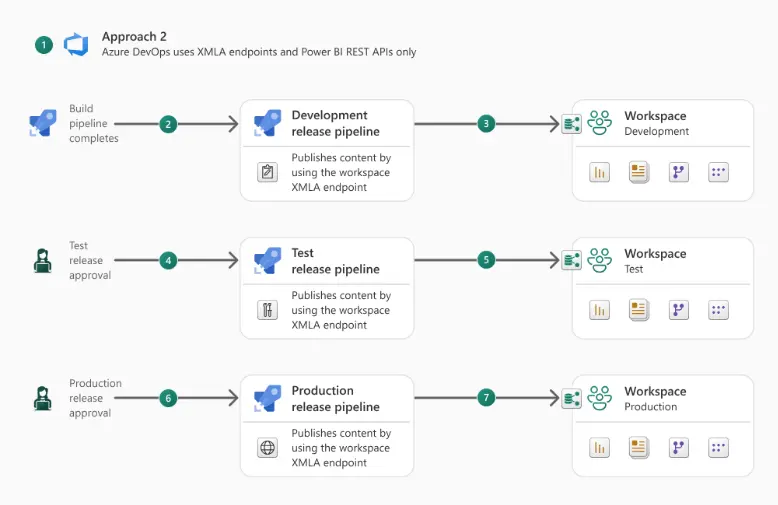
Power BI usage scenarios: Enterprise content publishing – Power BI | Microsoft Learn
Why CI/CD for Power BI?
A structured CI/CD pipeline for Power BI ensures:
- Automated Deployment: Eliminates manual uploads and reduces errors.
- Version Control: Tracks changes in Power BI reports over time.
- Consistency Across Environments: Ensures seamless transitions from development to testing and production.
- Improved Collaboration: Enables multiple developers to work on reports without conflicts.
CI/CD Pipeline for Power BI: Approach 2
Step 1: Build Pipeline (Extract & Store PBIX Files)
- Set Up a Repository: Store PBIX files in an Azure DevOps repository.
- Use Power BI REST APIs: Automate the extraction of PBIX files from the Dev workspace.
- Define a Build Pipeline: Validate PBIX files and store validated files as artifacts for deployment.
Step 2: Release Pipeline (Deploy PBIX Files)
- Set Up a Multi-Stage Release Pipeline:
- Use Azure DevOps Release Pipelines:
Best Practices for CI/CD in Power BI
- Automate Validations: Use Power BI REST APIs to check report health before deployment.
- Use Environment-Specific Parameters: Ensure seamless transitions between Dev, Test, and Prod.
- Implement Security Best Practices: Restrict deployment permissions to authorized users.
- Monitor Deployments: Use Power BI audit logs and Azure Monitor for tracking changes.
Conclusion
Implementing CI/CD for Power BI in Azure DevOps streamlines report management, enhances governance, and improves overall efficiency. By leveraging Azure Pipelines and Power BI REST APIs, organizations can achieve a robust deployment framework, ensuring reports are delivered consistently across all environments.
Need help setting up your Power BI CI/CD pipeline? Check out the Microsoft Documentation for more details or read our other blogs going into detail on how to implement Approach 2 for your organization!
 Data issues tracked from detection to fix