

Why Copilot Agents Struggle with Excel Data
Many teams use Excel as the main place to store business data. Customer records, sales reports, marketing performance, order history, and campaign results are often maintained in spreadsheets. Excel is flexible and easy for users, but that flexibility becomes a challenge when the same file is passed directly to a Microsoft Copilot Studio agent.
A common expectation is that the agent should read the entire workbook, understand every sheet, calculate metrics, and answer analytical questions correctly. However, raw Excel files are usually designed for humans, not for AI agents or business analytics automation. A person can open the workbook, understand which tab is important, ignore blank rows, interpret formulas, and manually compare values. A Copilot Studio agent may not always understand the same structure clearly.
The problem becomes bigger when the workbook has multiple sheets. Each sheet may have different column names, different date formats, merged cells, formulas, pivot tables, blank rows, and summary sections. For example, one sheet may use the column name Revenue, another may use Sales Amount, and another may use Order Value. Even if all three mean the same thing, the agent may treat them differently. This is one of the biggest challenges in Excel data standardization and AI-ready data processing.
This is why uploading a raw Excel file into a knowledge base is not always enough. A knowledge base is good for finding information from documents, FAQs, manuals, or policies. But analytical questions require more than search. Questions like “Which brand has the most revenue?”, “Who converted after 90 days?”, or “Which industry should we market toward?” need filtering, grouping, calculation, and comparison. These types of AI analytics with Excel require structured data instead of unorganized spreadsheets.
A better approach is to standardize the Excel data before giving it to the agent. The raw workbook should first be cleaned and converted into structured tables. Each table should have a clear purpose, consistent column names, and proper data types. For example, the data can be separated into tables such as customer_order, customer_conversion, brand_summary, industry_brand_summary, and marketing_month. This process improves Excel data automation and helps create structured data for AI systems.
Simple Architecture Diagram
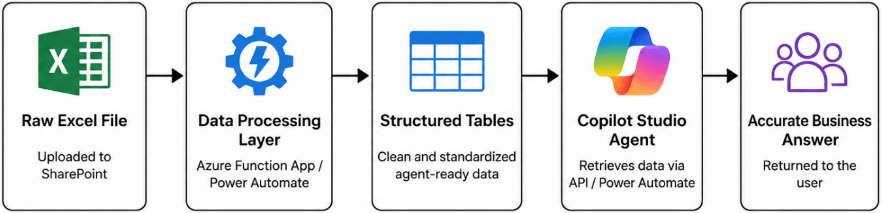
In this architecture, the Copilot agent does not directly depend on the messy Excel workbook. The raw file can be uploaded into Microsoft SharePoint. Then Azure Functions or Microsoft Power Automate can process the file, clean the data, standardize the columns, and create agent-ready tables. Copilot Studio can then call Power Automate or a REST API to retrieve the correct answer from the structured data. This architecture supports better Power Automate Excel integration and improves Copilot Studio Excel integration for enterprise reporting.
This design makes the agent more reliable because it removes confusion. The agent no longer needs to guess which sheet to use, which column means revenue, or which formula gives the result. The backend handles the calculation, while the agent focuses on understanding the user’s question and presenting the answer clearly. This improves business analytics automation and helps organizations build more reliable AI agents for Excel data analysis.
In simple terms, clean data creates better answers. Better answers create more trust. When the data is standardized before reaching the agent, Copilot Studio becomes much more useful for real business analytics, Excel workbook automation, and enterprise AI data management.
Categories
- Accessibility solutions (3)
- AI / LLMOps (AI Observability & Monitoring) (3)
- AI & Automation (17)
- AI Governance & Responsible AI (4)
- AI Security (4)
- Android (17)
- Angular JS (1)
- API & Integration / Developer Tools (1)
- Apple (3)
- Artificial Intelligence (1)
- Artificial Intelligence (AI) (16)
- AV & Collaboration Technology (2)
- AWS Cloud Computing (2)
- AWS DMS (6)
- AWS RDS (12)
- Azure (3)
- BI & ANALYTICS (16)
- Cloud Computing & AI (5)
- Cloud Identity & Directory Services (1)
- Cloud Migration (12)
- Cloud Security & Identity Management (3)
- Company News (5)
- Continuous integration and continuous deployment (2)
- Cybersecurity (7)
- Data Analytics (12)
- Data Engineering (8)
- Data Governance & Compliance (6)
- Data Management (5)
- Data Migration (9)
- Data Quality (1)
- Data Quality & Data Governance (1)
- DBA (10)
- DevOps (1)
- Email Security (1)
- Endpoint Management / Device Management (1)
- Enterprise AI / AI Governance (1)
- Enterprise AI / AI Implementation Best Practices (1)
- Enterprise AI & Intelligent Automation (2)
- Enterprise Mobility & Security (1)
- Enterprise Software Integration / Backend Development (1)
- Enterprise Technology (1)
- Enterprise UX/UI Design (1)
- Goldengate (19)
- Google (2)
- Hadoop (3)
- HPNA (1)
- Ios (10)
- ios 10 (2)
- iPad (3)
- iPhone (3)
- Licensing (7)
- Linux (13)
- Machine Learning Solutions (1)
- Marketing Technology (1)
- Microsoft 365 (1)
- Microsoft 365 Development / APIs (1)
- Microsoft 365 Security & Compliance (4)
- Microsoft Configuration Manager (SCCM / MECM) (1)
- Microsoft Dynamics 365 (4)
- Microsoft Marketplace (1)
- Microsoft Office (5)
- Microsoft Purview (3)
- Microsoft SharePoint & Security (1)
- Microsoft Teams / Collaboration Tools (1)
- Microsoft Teams Security & Compliance (2)
- Mobile (2)
- Network Automation (5)
- Network Security Services (1)
- News (21)
- Operating System (1)
- Oracle (37)
- oracle consulting (3)
- PostgreSQL (1)
- Quantum Computing (1)
- Quickbooks (1)
- SEO (1)
- Software Development (33)
- Systems Automation (2)
- Tech (3)
- Technology (51)
- UI (13)
- Uncategorized (8)
- UX (9)
- VSTO (1)
- Web Development (1)
- Windows (9)
- wordpress (1)