

KQL Patterns for Querying Purview Events in CloudAppEvents: Key Insights and Common Pitfalls
Microsoft Purview helps organizations classify, protect, and govern sensitive data across Microsoft 365. Security teams often use KQL (Kusto Query Language) in Microsoft Defender XDR Advanced Hunting to investigate Microsoft Purview events, monitor sensitivity labels, and analyze DLP activity stored in CloudAppEvents. However, many administrators encounter incomplete results or slow-running queries because critical Purview data is stored within nested JSON fields rather than standard columns.
This guide explains the most effective CloudAppEvents KQL patterns, highlights common mistakes that impact query performance, and demonstrates how to reliably retrieve Purview activity logs, sensitivity label information, DLP indicators, and other event metadata.
RawEventData is where the real data hides
One of the biggest misconceptions when writing CloudAppEvents KQL queries is assuming that all Microsoft Purview information is directly available through the ActionType field. In reality, important attributes—including Sensitivity Label IDs, DLP policy names, Sensitive Information Type (SIT) matches, and justification text—are stored inside the RawEventData JSON object.
To retrieve these values efficiently, parse the JSON only once and reuse the parsed object throughout the query. Repeatedly calling parse_json(tostring(RawEventData)) forces the query engine to process the same JSON multiple times, which can significantly increase execution time, especially when querying large volumes of Microsoft Defender XDR telemetry.
let RawParsed = CloudAppEvents
| where Timestamp > ago(7d)
| where ActionType contains “Sensitivity”
| extend raw = parse_json(tostring(RawEventData));
RawParsed
| extend LabelId = tostring(raw.SensitivityLabelEventData.SensitivityLabelId)
| project Timestamp, AccountObjectId, ActionType, ObjectName, LabelId
This approach improves readability, reduces processing overhead, and provides a scalable foundation for building more advanced Microsoft Purview KQL queries.
Two column traps to know before writing anything else
Several fields in CloudAppEvents behave differently than many administrators expect, often resulting in empty query results or unexpected errors.
The first issue involves AccountId. Although it may appear suitable for filtering users, it actually stores the Microsoft Entra object GUID rather than a user’s email address or UPN. Filtering AccountId with an email address will return no matching results. When searching for user activity, use AccountObjectId or the appropriate identity field instead.
The second issue involves ApplicationId. This field stores an integer value rather than a string GUID. Comparing it with string values generates a SEM0025 type mismatch error instead of silently returning no data. Understanding these data types before building Advanced Hunting KQL queries helps eliminate unnecessary troubleshooting and improves query reliability.
Four patterns worth building once
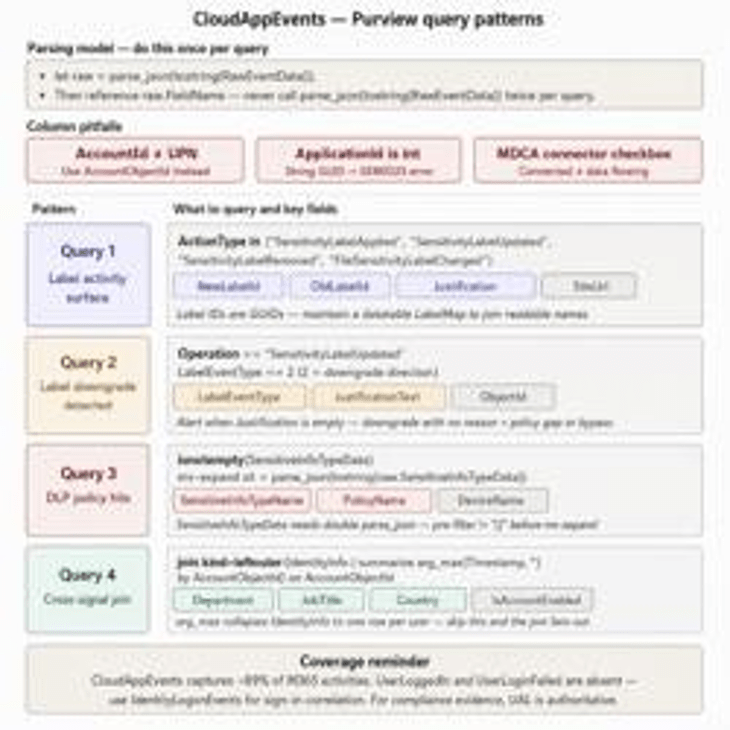
Many Microsoft Purview investigations require the same query logic repeatedly. Creating reusable KQL query patterns saves time, improves consistency, and makes ongoing investigations more efficient.
Common reusable patterns include:
- Retrieving Sensitivity Label IDs from RawEventData.
- Extracting Sensitivity Label Names for reporting.
- Identifying DLP policy matches and enforcement actions.
- Capturing justification text when users override sensitivity labels.
- Parsing Sensitive Information Type (SIT) matches.
- Extracting metadata for compliance investigations and audit reporting.
Reusable CloudAppEvents KQL examples also make it easier to standardize reporting across security operations teams while reducing maintenance effort.
The prerequisite that fails silently
Even perfectly written Microsoft Purview KQL queries may return no results if the required services are not configured correctly.
To collect Purview events successfully:
- Deploy Microsoft Defender for Cloud Apps.
- Enable Microsoft 365 Activities under Settings → Cloud Apps → App Connectors.
- Verify that activity collection is enabled instead of relying solely on the connector status.
- Confirm that CloudAppEvents is receiving new telemetry before troubleshooting the query itself.
A connector may display as Connected while still collecting no usable data. Before assuming the query is incorrect, validate the environment configuration and ensure the required data sources are actively sending telemetry.
Conclusion
Writing efficient Microsoft Purview KQL queries requires more than understanding Kusto syntax. Success depends on knowing where Purview stores its data, parsing RawEventData correctly, avoiding common column mismatches, and verifying that Microsoft Defender for Cloud Apps is configured to collect Microsoft 365 activity.
By following these CloudAppEvents KQL best practices, security analysts can build faster, more reliable Advanced Hunting queries, simplify compliance investigations, improve Purview activity log analysis, and extract valuable insights from Microsoft Defender XDR without unnecessary troubleshooting.
Categories
- Accessibility solutions (3)
- AI / LLMOps (AI Observability & Monitoring) (3)
- AI & Automation (17)
- AI Governance & Responsible AI (4)
- AI Security (4)
- Android (17)
- Angular JS (1)
- API & Integration / Developer Tools (1)
- Apple (3)
- Artificial Intelligence (1)
- Artificial Intelligence (AI) (16)
- AV & Collaboration Technology (2)
- AWS Cloud Computing (2)
- AWS DMS (6)
- AWS RDS (12)
- Azure (3)
- BI & ANALYTICS (16)
- Cloud Computing & AI (5)
- Cloud Identity & Directory Services (1)
- Cloud Migration (12)
- Cloud Security & Identity Management (3)
- Company News (5)
- Continuous integration and continuous deployment (2)
- Cybersecurity (7)
- Data Analytics (12)
- Data Engineering (8)
- Data Governance & Compliance (6)
- Data Management (5)
- Data Migration (9)
- Data Quality (1)
- Data Quality & Data Governance (1)
- DBA (10)
- DevOps (1)
- Email Security (1)
- Endpoint Management / Device Management (1)
- Enterprise AI / AI Governance (1)
- Enterprise AI / AI Implementation Best Practices (1)
- Enterprise AI & Intelligent Automation (2)
- Enterprise Mobility & Security (1)
- Enterprise Software Integration / Backend Development (1)
- Enterprise Technology (1)
- Enterprise UX/UI Design (1)
- Goldengate (19)
- Google (2)
- Hadoop (3)
- HPNA (1)
- Ios (10)
- ios 10 (2)
- iPad (3)
- iPhone (3)
- Licensing (7)
- Linux (13)
- Machine Learning Solutions (1)
- Marketing Technology (1)
- Microsoft 365 (1)
- Microsoft 365 Development / APIs (1)
- Microsoft 365 Security & Compliance (4)
- Microsoft Configuration Manager (SCCM / MECM) (1)
- Microsoft Dynamics 365 (4)
- Microsoft Marketplace (1)
- Microsoft Office (5)
- Microsoft Purview (3)
- Microsoft SharePoint & Security (1)
- Microsoft Teams / Collaboration Tools (1)
- Microsoft Teams Security & Compliance (2)
- Mobile (2)
- Network Automation (5)
- Network Security Services (1)
- News (21)
- Operating System (1)
- Oracle (37)
- oracle consulting (3)
- PostgreSQL (1)
- Quantum Computing (1)
- Quickbooks (1)
- SEO (1)
- Software Development (33)
- Systems Automation (2)
- Tech (3)
- Technology (51)
- UI (13)
- Uncategorized (8)
- UX (9)
- VSTO (1)
- Web Development (1)
- Windows (9)
- wordpress (1)