

AI Builder Confidence Scores: Interpretation and Implementation in Power Automate
Learn what AI Builder confidence scores actually mean, how to identify a training issue versus a document structure issue, and how to implement threshold-based routing in Power Automate AI Builder workflows for reliable document automation.
When Microsoft AI Builder extracts a field from a document, it returns two things: the extracted value and a confidence score between 0 and 1. That score represents the model’s certainty that the extracted value is correct. A score of 0.95 indicates strong confidence, while a score of 0.42 suggests uncertainty — and that distinction becomes critical when the output drives a business process or automated workflow.
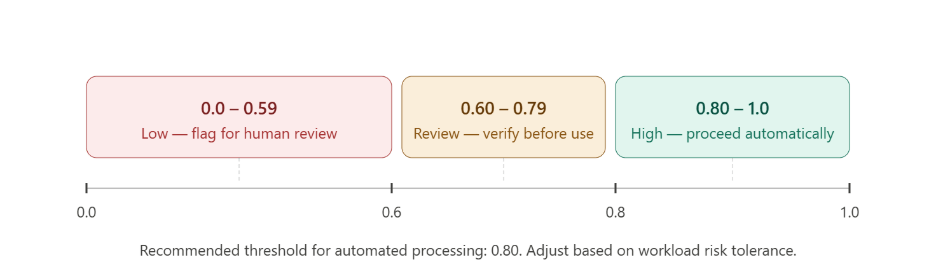
Understanding AI Builder Confidence Scores
A confidence score reflects how closely the document matches the patterns the AI Builder document processing model learned during training. It considers factors such as text clarity, field placement consistency, document formatting, and how closely the incoming file aligns with the training dataset.
However, the confidence score does not explain why the value received a low rating. This is an important limitation that often creates challenges in Power Automate document automation projects.
A low confidence score generally points to one of two root causes:
- The model has not seen enough variations of the field during training.
- The incoming document structure differs significantly from the training set.
Understanding the difference is essential for improving AI-powered workflow automation.
Training-Related Issues in AI Builder
The first issue is a training problem. The AI Builder training model may not have enough examples of different layouts, invoice formats, or field structures. As a result, the model struggles to generalize when it encounters a new format.
For example, an AI Builder invoice processing model trained on only a few vendor templates may produce low confidence scores when a new vendor invoice is uploaded.
In these situations, retraining the model with additional document variations usually improves extraction accuracy and increases confidence scores.
Structural Document Problems
The second issue is a document structure problem. The incoming file may genuinely differ from anything the model has processed before. Common examples include:
- New vendor invoice layouts
- Low-quality scanned documents
- Blurry text or OCR issues
- Missing fields in the document
- Irregular formatting or handwritten content
In these cases, retraining alone may not solve the issue. Instead, businesses should implement validation and review steps within their Power Automate automation workflow.
Treating every low confidence score as a training issue often leads to unnecessary retraining and reduced workflow efficiency.
Building Threshold Routing in Power Automate
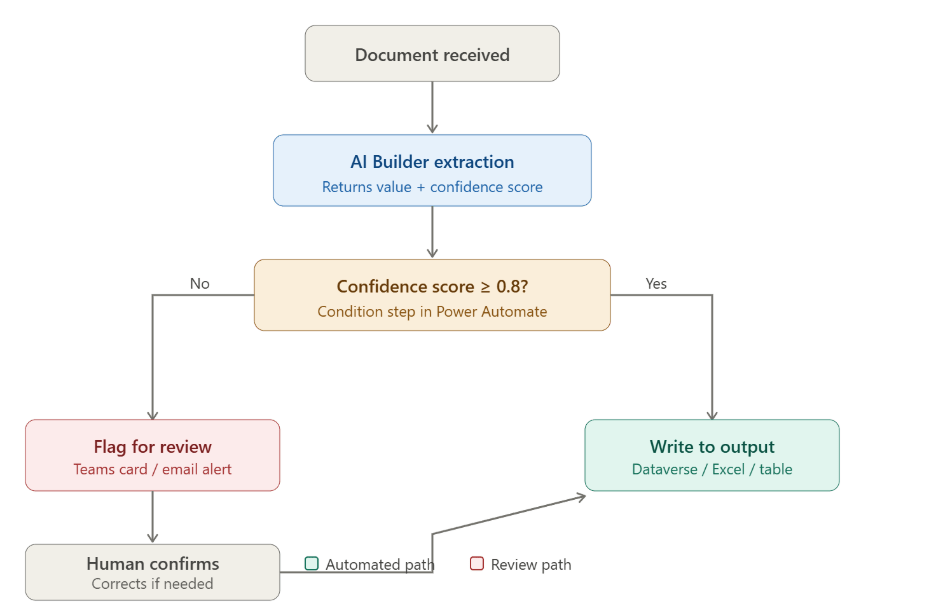
A practical approach is to add a confidence validation step immediately after the Power Automate AI Builder action.
The workflow should evaluate each extracted field against a predefined threshold. In most AI document processing in Power Automate scenarios, a confidence threshold of 0.8 is a good starting point.
If the confidence score falls below the threshold, the extraction should be flagged as unverified instead of automatically written into your database or Dataverse automation with AI Builder workflow.
This creates a reliable automated document validation process that reduces incorrect data entries.
Implementing Review and Approval Workflows
Low-confidence fields should be routed to a review stage rather than directly updating records.
For example, organizations can send an adaptive card to Microsoft Teams containing:
- The extracted value
- The document name
- The confidence score
- Approval or correction options
This method improves accuracy while maintaining automation efficiency in Power Platform document extraction workflows.
Fields with high confidence scores can proceed automatically, while uncertain extractions receive human validation before being committed to the system.
The Best Practice Workflow Pattern
The most effective pattern for Power Automate intelligent document processing is:
Extract → Evaluate → Route
This approach helps organizations:
- Automate high-confidence document processing
- Reduce manual verification efforts
- Prevent incorrect data from entering business systems
- Improve reliability in AI Builder business automation
- Build scalable document automation workflows
Adding confidence-based routing may seem like a small enhancement, but it significantly improves the quality and reliability of enterprise automation pipelines.
Categories
- Accessibility solutions (3)
- AI / LLMOps (AI Observability & Monitoring) (3)
- AI & Automation (17)
- AI Governance & Responsible AI (4)
- AI Security (4)
- Android (17)
- Angular JS (1)
- API & Integration / Developer Tools (1)
- Apple (3)
- Artificial Intelligence (1)
- Artificial Intelligence (AI) (16)
- AV & Collaboration Technology (2)
- AWS Cloud Computing (2)
- AWS DMS (6)
- AWS RDS (12)
- Azure (3)
- BI & ANALYTICS (16)
- Cloud Computing & AI (5)
- Cloud Identity & Directory Services (1)
- Cloud Migration (12)
- Cloud Security & Identity Management (3)
- Company News (5)
- Continuous integration and continuous deployment (2)
- Cybersecurity (7)
- Data Analytics (12)
- Data Engineering (8)
- Data Governance & Compliance (6)
- Data Management (5)
- Data Migration (9)
- Data Quality (1)
- Data Quality & Data Governance (1)
- DBA (10)
- DevOps (1)
- Email Security (1)
- Endpoint Management / Device Management (1)
- Enterprise AI / AI Governance (1)
- Enterprise AI / AI Implementation Best Practices (1)
- Enterprise AI & Intelligent Automation (2)
- Enterprise Mobility & Security (1)
- Enterprise Software Integration / Backend Development (1)
- Enterprise Technology (1)
- Enterprise UX/UI Design (1)
- Goldengate (19)
- Google (2)
- Hadoop (3)
- HPNA (1)
- Ios (10)
- ios 10 (2)
- iPad (3)
- iPhone (3)
- Licensing (7)
- Linux (13)
- Machine Learning Solutions (1)
- Marketing Technology (1)
- Microsoft 365 (1)
- Microsoft 365 Development / APIs (1)
- Microsoft 365 Security & Compliance (4)
- Microsoft Configuration Manager (SCCM / MECM) (1)
- Microsoft Dynamics 365 (4)
- Microsoft Marketplace (1)
- Microsoft Office (5)
- Microsoft Purview (3)
- Microsoft SharePoint & Security (1)
- Microsoft Teams / Collaboration Tools (1)
- Microsoft Teams Security & Compliance (2)
- Mobile (2)
- Network Automation (5)
- Network Security Services (1)
- News (21)
- Operating System (1)
- Oracle (37)
- oracle consulting (3)
- PostgreSQL (1)
- Quantum Computing (1)
- Quickbooks (1)
- SEO (1)
- Software Development (33)
- Systems Automation (2)
- Tech (3)
- Technology (51)
- UI (13)
- Uncategorized (8)
- UX (9)
- VSTO (1)
- Web Development (1)
- Windows (9)
- wordpress (1)